


Custom reagent lists can be used in custom experiments with Chemistry Canvas data types. You must have the Chemistry Canvas data type enabled to use this workflow. Please contact Support or your Account Manager if it is not enabled. The custom reagent list is configured in the Work Orders module. The configuration option for custom reagent lists is restricted to Workflow Managers. If you don’t see the option, please contact your System Administrator.
When creating lists, the system will make them available in any chemistry experiment with a Canvas field. There is no limit to the number of reagent lists you can create.
System fields for the custom reagent list include:
- IUPAC Name
- Molecular Weight
- Formula
- SMILES
- Trivial Name
- CAS™
- Density
To create a custom reagent list
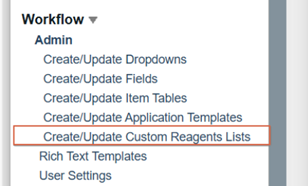
- Select “Create/Update Custom Reagents Lists” under Workflow/Admin from the left navigation bar. This will open the workflow module and display the Manage Custom Reagent List window.
- Navigate to the Import tab on the Create Reagents Lists page and upload an SD file containing the reagents you wish to add to your list.

Note: With an SD file, only the structure is required.
- Any fields will automatically be mapped if the fields in the file match the system field names.
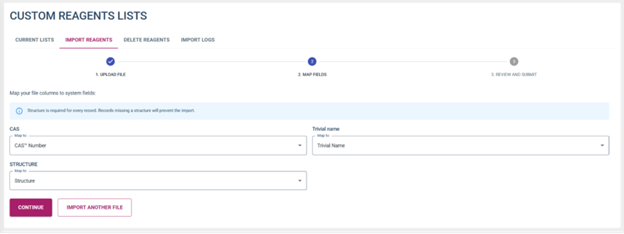
NOTE: If you provide data for a field that is automatically calculated from the structure data, your provided data will OVERWRITE the system-generated data. If you wish to use the system data, please do not provide values for these fields.
- The system will verify the number of items uploaded for the file. You must provide a unique name for the new list you are creating; the system will not allow duplication. The system will verify this upon upload.
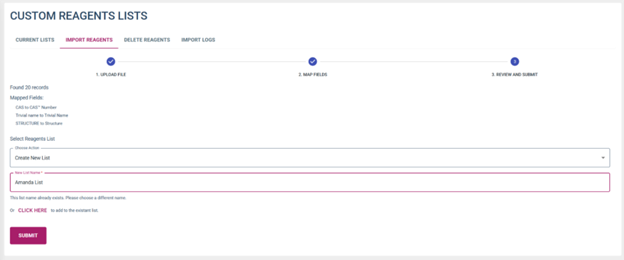
NOTE: The system does not check for uniqueness within your uploaded items. You can have multiple copies of the same structure if desired.
- The system will upload your items into the new list. This process can take some time, depending on the number of records. You do not need to remain on this screen; the system will continue processing in the background.
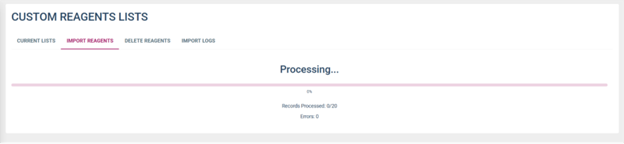
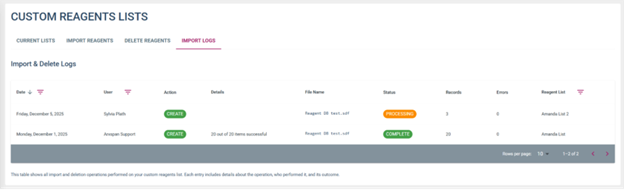
- To check the status of an upload, please refer to the import logs page.
- Once created, all lists will display under Current List in the Reagent Lists area.


