


The ability to modify custom reagent lists is restricted to Workflow Managers. If you don’t see the option, please contact your System Administrator.
Note: Deleting a list is a permanent action. Once a list is removed, it cannot be recovered. Updating a list is also a permanent action, you cannot “rollback” or “undo” the action. Please refer to Review Custom Reagent List if you wish to verify changes or make modifications.
Adding New Values to a List
To update a list with additional items, follow the same steps for creating a new list. At step 5, you will be presented with the option to create a new list OR update an existing list. Select Existing list and then select the list you wish to append the records to. Select the “Combine existing…” option to add to the existing list.
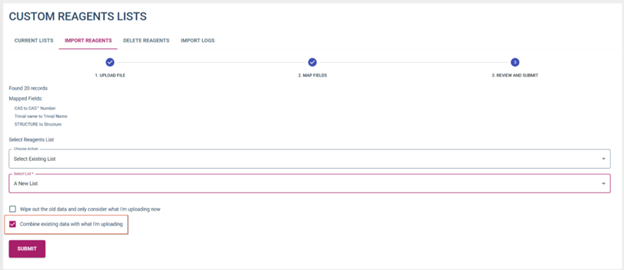
Replacing an Existing List
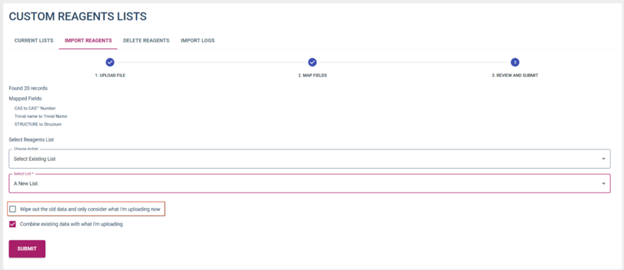
To replace an existing list with new data, follow all the steps above but instead of selecting the “Combine with existing..” option, select “Wipe out old data…” option.
WARNING: This action cannot be undone!
Deleting a Reagent List
To remove a list from the system
- Go to the “Delete Reagents” tab
- Select the list in which you wish to remove, select the checkbox “Delete whole list”
- Select delete
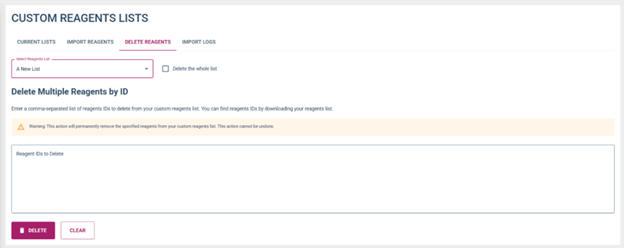
WARNING: This action cannot be undone.

