


 82
82
Workflow Notifications can be used to notify users when a Workflow Request is created or modified. An email message or a browser notification can be triggered when specific events occur. The Administrator can define which events trigger a Notification, who is notified (Group or Individual users), and whether the notification is in the form of an Email, a Browser notification, or both.
Users can customize their Notifications. They can increase or decrease the number of notifications they receive, and define if the notifications are sent via Email or Browser, or Both.
Settings for All users
- Administrators can define notifications that will be sent to all users.
- Open the Request Type you want to update
- Click the Configure Request Notifications button
- In the Who column select the Group or User to be notifies
- Select the Event Type for the Notification. Notifications can be sent when data is Created, Updated, or Reprioritized
- Choose The Type Level, Request Type, or Request Item Type
- Define the Field that will trigger the Notification
- Activate the Slide Switch for a Browser Notification, or both
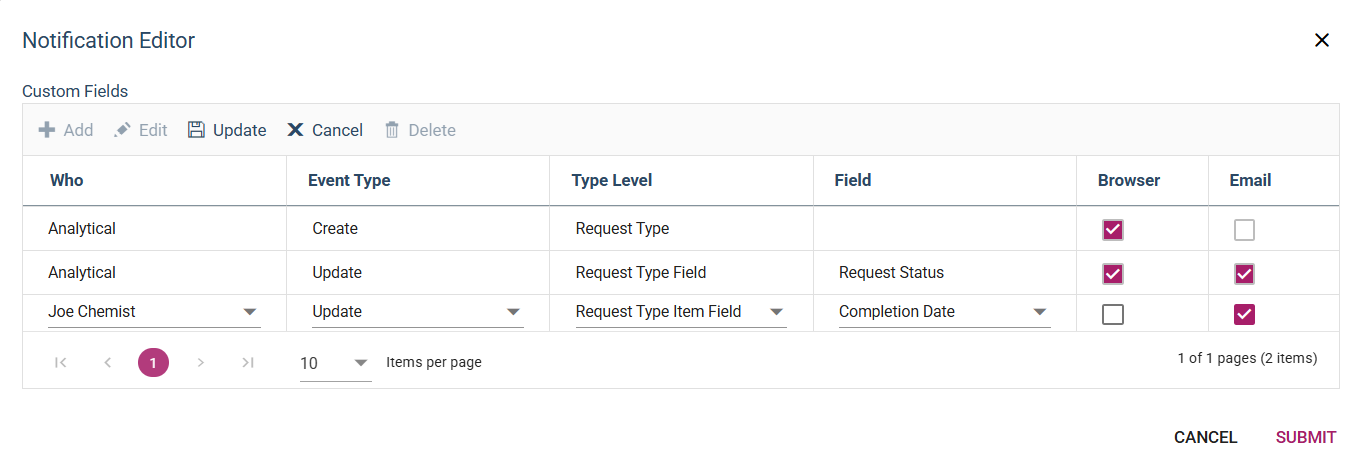
- Select another Notification on the next line if desired, and repeat the selections above
- Define as many Notifications as needed
- Click Update Notifications Settings.
As new Work Requests are created or Updated, Groups and Users will be notified via Browser (Click the Bell symbol in the upper right corner of the My Requests or Manager Requests screen), or will receive an Email message, according to the settings selected.
Note that in some cases it may be possible that Email notifications will be routed to a Spam folder, depending on corporate email configuration.
Settings for individual users
- In the event that the Notifications defined by the Administrator provide too many or too few Notifications, users can customize the settings.
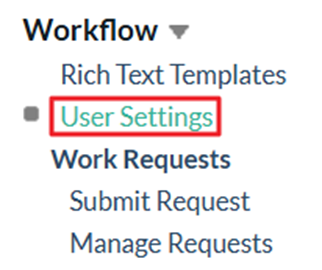
- In the Work Orders section of the left navigation pane, click on User Settings

- Click the Settings button for the Request Type to be modified.

- The Settings defined by the Administrator will be selected.
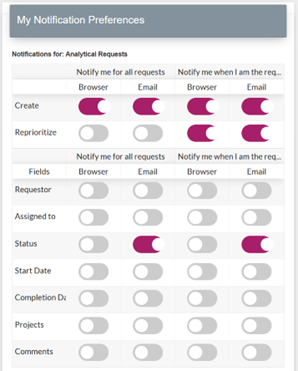

- Move the Sliders as desired to set the Notifications to the desired configuration. Click the Submit button to save the Configuration.

