Remove Login Information Saved in Chrome

Last updated: Apr 06, 2026
532
views

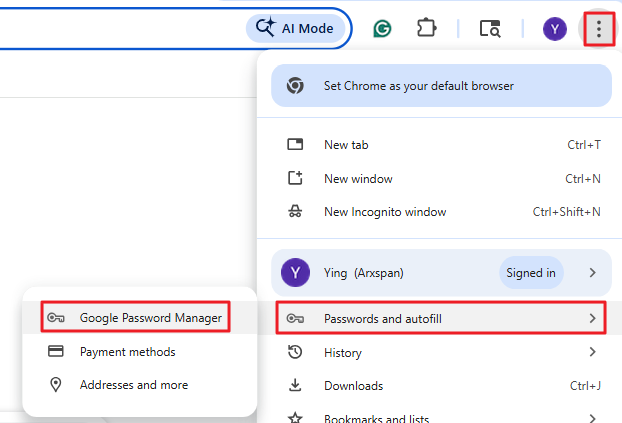
1. Open the Chrome menu by clicking the three dots on the top-right corner, find Passwords and autofill > Google Password Manager.
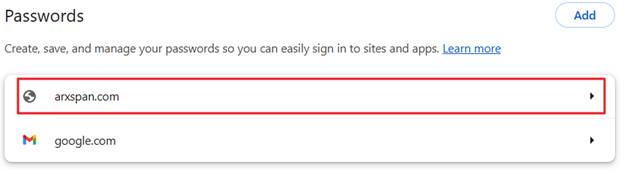
2. Locate “arxspan.com”, click on it (you may need to enter your computer's password)
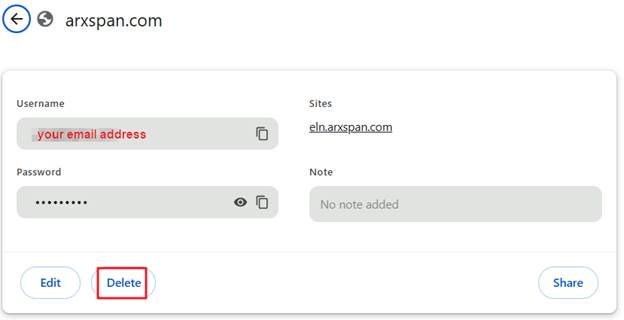
3. Click the Delete to remove it. This should remove your email from the login window.