Link Experiments to Experiments
Last updated: Nov 17, 2026
2
views

Experiments can be linked to other experiments to help organize information within your system. You can link an experiment to multiple others, or none. Adding or removing links does not affect any other content within the experiment.
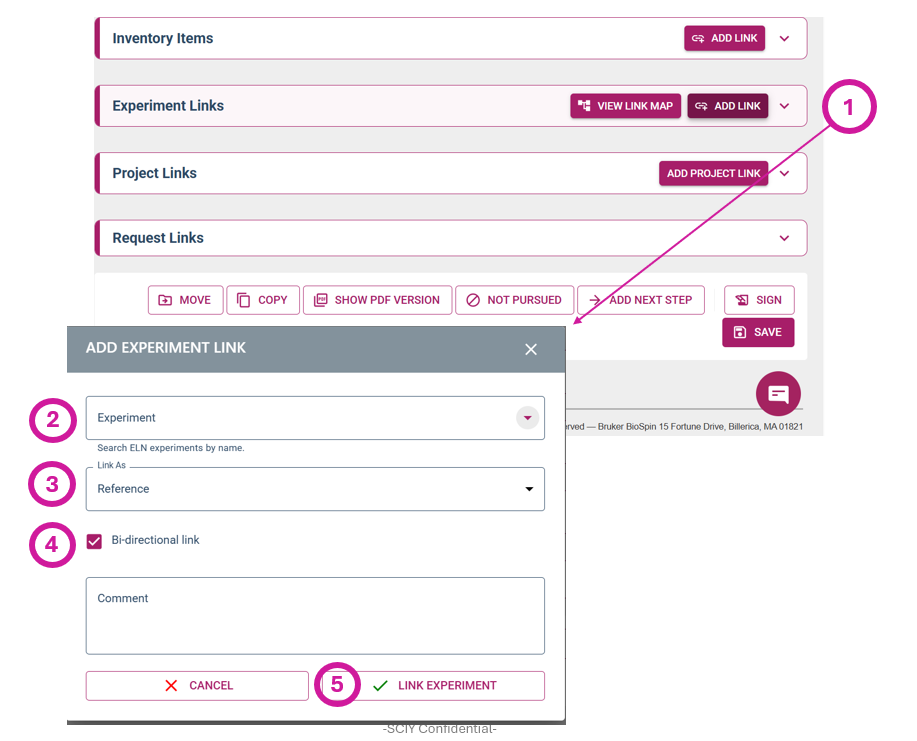
- On the experiment page, navigate to the "Experiment Links" section at the bottom of the page and click the “ADD LINK” button.
- Click into the “Experiment” field to open a type-ahead search. Begin typing the experiment number or keywords from its description, then select the desired experiment from the list of suggestions.
- Use the “Link as” option to specify the relationship, either as a previous step, next step, or a generic link. You can also add a description in the “Comment” section to clarify the purpose of the link.
- If the “Bi-directional Link” option is selected, the link will appear in both the current experiment and the linked experiment.
Note: This option is not available when selecting “previous” or “next step” in the dropdown.
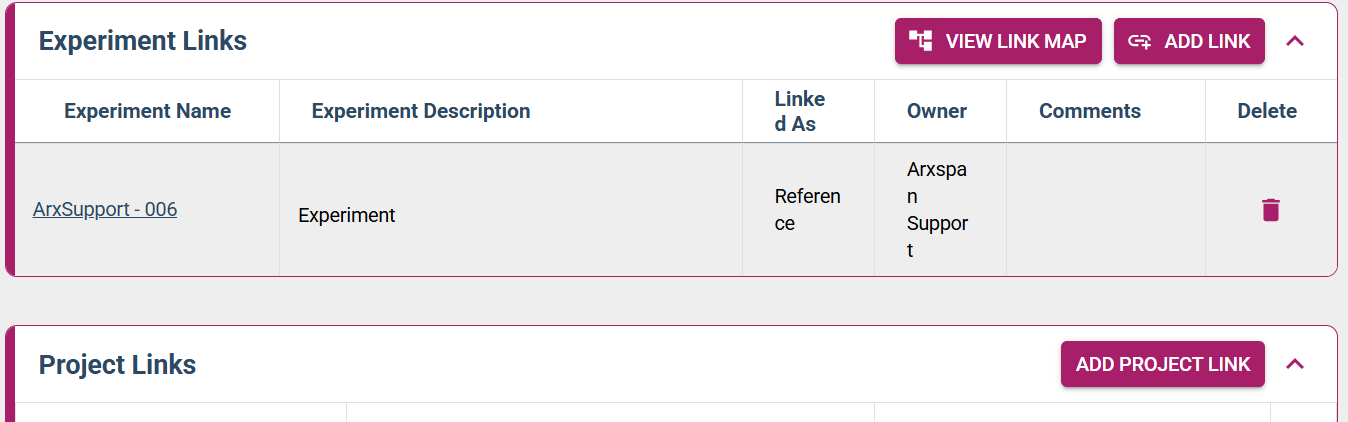
- Click “Like Experiment” to finalize. The link will then appear on the Experiment Links table.
Note: If you link to a signed/closed, or witnessed experiment, the link will only be visible on the experiment view. It will not appear in the PDF version.