Link Experiments to Projects
Last updated: Nov 17, 2026
2
views

Experiments can be linked to Projects to help organize information within your system. An experiment can be linked to multiple Projects, or none at all. Project links may affect visibility, depending on the user’s access privileges for the linked Project.
When viewing a Project, all linked experiments will be listed, regardless of the notebook they belong to. Adding or removing Project links does not affect any other content within the experiment.
To link an experiment to a Project:
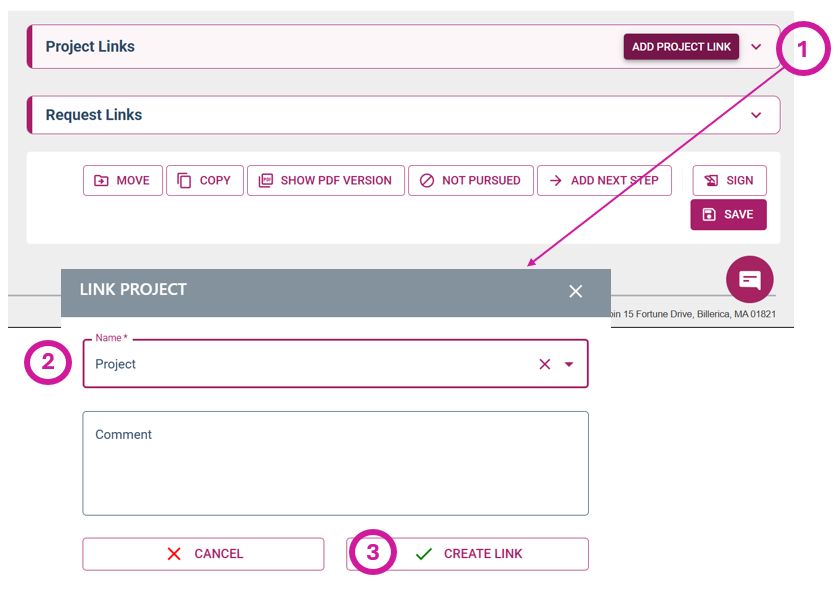
- Navigate to the experiment and click the “ADD PROJECT LINK” button next to the "Project Links" section at the bottom of the page.
- In the “Name” field, begin typing the first few letters of the Project name you want to link to. You can also add a description in the "Comment" field to clarify the purpose of the link.
Note:
- If the Project includes subprojects, you’ll need to select one of those. Subprojects will appear directly under the main Project name and will be indented with a hyphen.
- Click “CREATE LINK” to finalize. The linked project will then appear in the Projects Links table.
Note: If you link to a signed/closed, or witnessed experiment, the link will be visible only in the experiment view and will not appear in the PDF version.