Projects are collections of ELN experiments and notebooks that can be grouped together to manage read and write access for individual users or user groups.
There are two ways to add content to a project:
- Navigate to the desired project and add notebooks to it.
- Open the experiment and link it to a project
Note: You must have write privileges on a project to add experiments or notebooks to it.
Adding notebooks to a project:
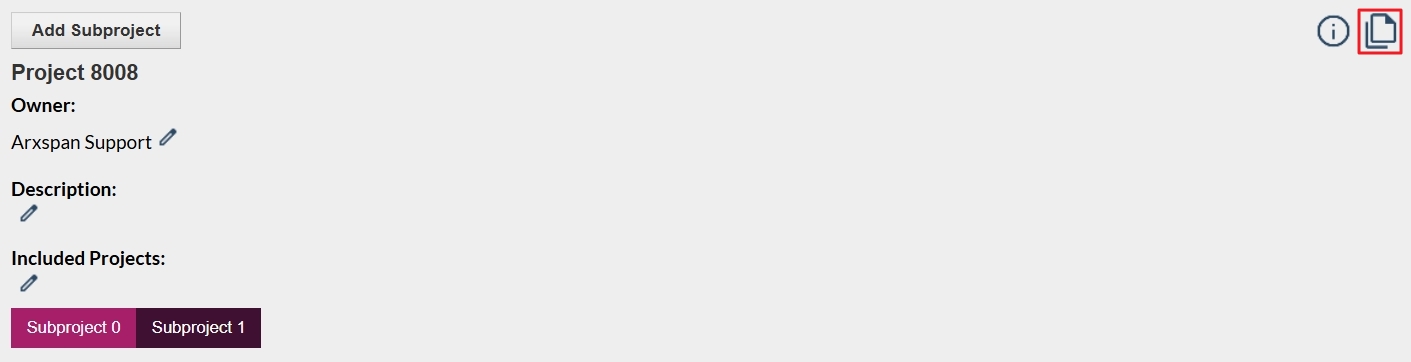
- Locate the notebook you want to add to a project and click the copy icon in the upper right-hand corner of the page. This action places the notebook into your ELN clipboard (note: this is separate from your computer’s clipboard). See the screenshot below.

- Navigate to the target project and click the paste icon, located in the same position as the copy icon. Once pasted, the notebook will immediately appear in the project.
Note: The project link added at the notebook level will automatically appear in every experiment within that notebook and cannot be manually removed from the experiment page.
Adding a project to your experiment:
To link an experiment to a project
- Navigate to the experiment of interest and select the Link option in the top right of the page.
- The link experiment dialog box will open, you will need to select “Project” from the first drop down.
- Type the first few letters of the Project you want to link to in the Search for Project field.
NOTE:
- If the project you wish to link has included subprojects, you will need to select one of those. They will be listed directly under the project name and indented with a hyphen.
- If you are using a Custom experiment with Masked Values for Project Names, only the Masked Values will be displayed, regardless of User Permissions.
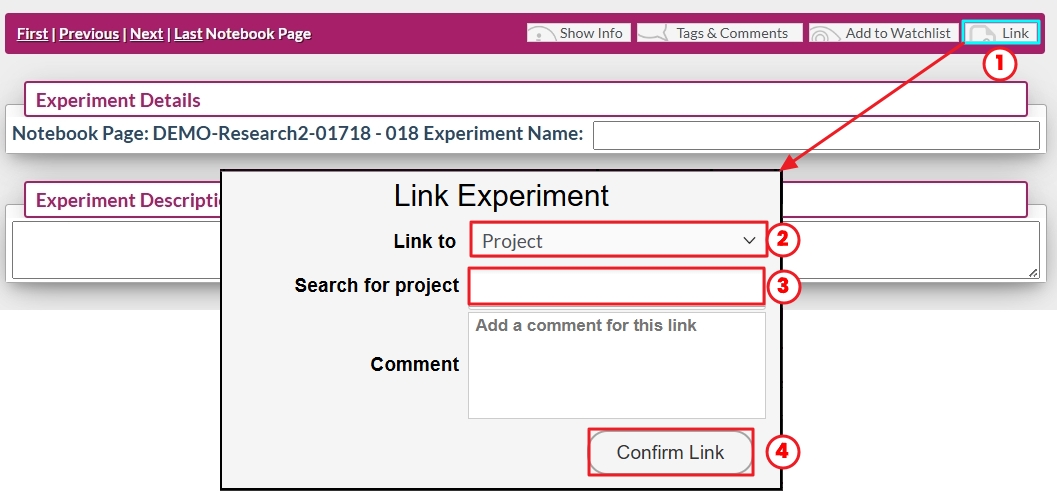
- The “Confirm Link” button will create a link in your experiment in the project links table and in the project itself.

Removing an Experiment or Notebook from a Project:
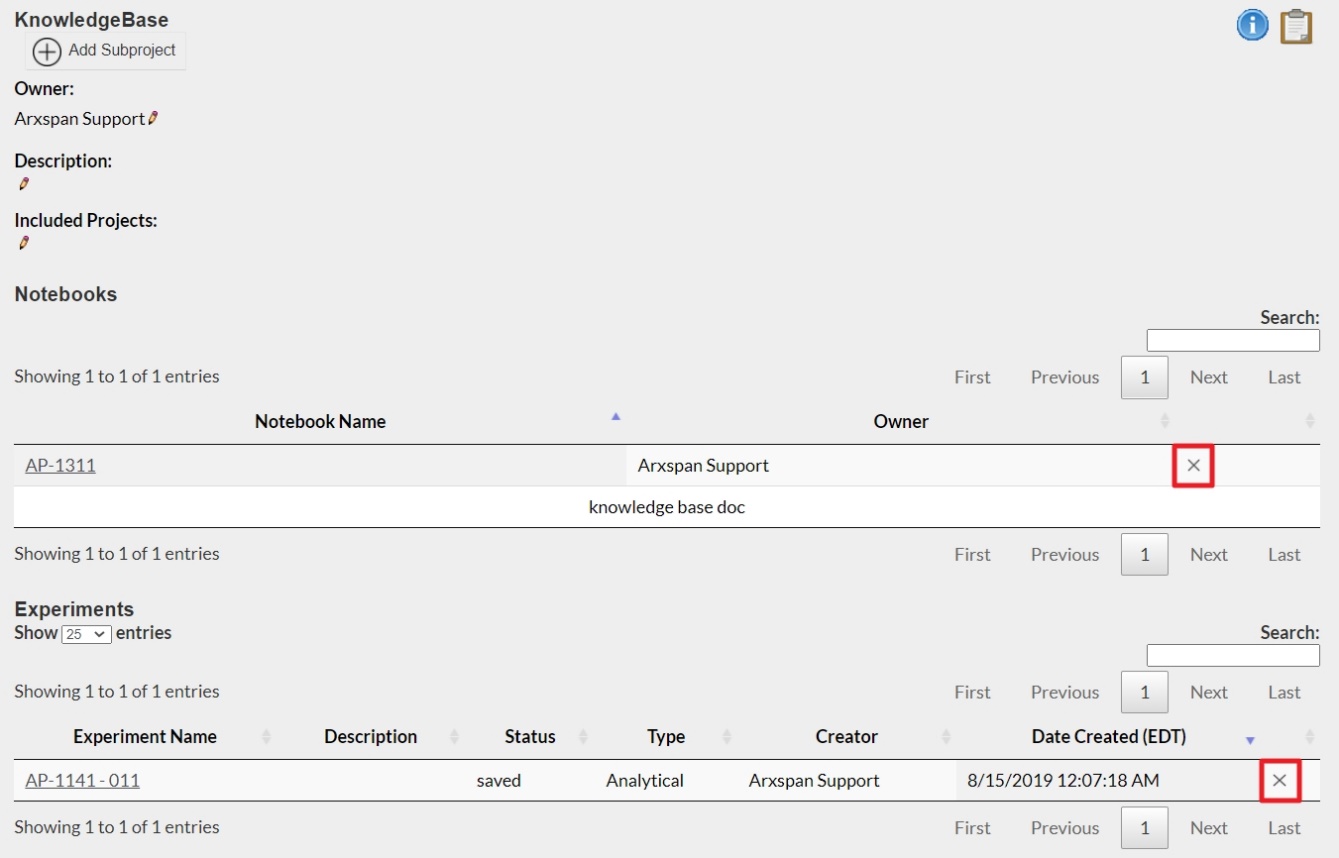
In the main project page, you can remove links to notebooks and experiments by selecting the “x” next to the notebook or experiment of interest. This removes the link in both directions.